


Quick Answer
Before trying to access a website you think is blocked, first confirm that access is actually being restricted and identify where the restriction occurs. Record the exact error, test the page in another browser and on another device, then—if you have permission—try one different network. These comparisons can help you determine whether the issue is related to your browser, device, local network, DNS settings, location, or the website itself.
Use the least invasive fix that matches the cause. Repair local settings when the issue affects only your browser or device. Contact the administrator when a school or workplace controls the network. A VPN or proxy may help with certain network or location-based restrictions, while changing your DNS resolver is mainly useful for DNS-related failures or filtering. Each method has its limitations, and you should avoid using untrusted services for sensitive information.
Start by finding out what is blocking the website
A website that will not load is not necessarily blocked. It could be offline, mistyped, restricted to certain accounts or regions, triggering a security certificate warning, or affected by a temporary network failure.

A Five-Minute Check to Find Out Why You Can’t Access a Website
Before changing any settings, take a few minutes to figure out where the problem is. These quick checks can help you identify whether the restriction comes from your browser, device, network, or location.
1. Switch to another network. Disconnect your phone from Wi-Fi and try opening the website using mobile data. If it works, the issue may be related to your Wi-Fi network, router, DNS settings, or ISP.
2. Check for location-based restrictions. If the website displays a message saying the content isn’t available in your country or region, it may be restricting access based on your IP address. You can use residential proxies to test how the website loads from different locations.
FlashIP offers location-targeted residential IPs that help you check regional website accessibility and identify potential geo-restrictions.
3. Try another browser or device. Open the website in a different browser or on another device. If it works there, the issue may be related to browser extensions, cached data, antivirus software, or local security settings.
4. Check whether the website is down. If the site won’t load across multiple devices and networks, it may be experiencing an outage or restricting access on its end. Check its official status page or try again later.
These checks won’t identify every type of restriction, but they can help narrow down the cause before you try a workaround.
What Common Error Messages Mean
The same error message can have several possible causes. Use these messages as clues to narrow down the issue.
| Symptom or message | Possible causes | Best first step |
|---|---|---|
| “Server not found,” “DNS address could not be found,” or a name-resolution error | DNS outage, incorrect DNS settings, DNS filtering, or a mistyped address | Confirm the URL and compare another device or authorized network |
| “Access denied,” “Forbidden,” or HTTP 403 | Website-side restriction, account permissions, VPN rejection, regional limits, or network filtering | Sign in through the official page and review the service’s permitted access options |
| Connection timeout or reset | Website outage, firewall rule, unstable connection, or provider routing issue | Test another site, device, and authorized network |
| Network or policy block page | Router, parental-control, school, workplace, or provider content filtering | Contact the person or organization that manages the restriction |
| “Your connection is not private” or a certificate warning | Incorrect device time, captive portal, interception, expired certificate, or website misconfiguration | Check the clock and network; do not bypass the warning to enter sensitive data |
| Sign-in failure or disabled-account notice | Account lock, suspension, authentication issue, or service-side restriction | Use the website’s account recovery or support process |
| Page loads but some elements fail | Script blocking, cookie restrictions, an extension, or blocked third-party resources | Test a private window and review site permissions |
No access method can repair an offline website, reactivate a disabled account, or force a destination service to accept a connection it rejects.
Fix browser and device problems before trying a workaround
If the failure appears limited to one browser or device, start with reversible changes.
- Check the URL again. Search results, old bookmarks, and copied links may point to obsolete or misspelled pages.
- Verify the device’s date, time, and time zone. Incorrect time settings can cause valid certificates to appear untrusted.
- Open a private browsing window. If the site works, existing cookies, cached files, or an extension may be responsible.
- Temporarily disable a suspect extension. Test one extension at a time, especially content blockers, script controls, privacy tools, and security add-ons. Re-enable each one after testing.
- Review browser permissions. A site may require cookies, JavaScript, pop-ups, location access, or another permission for a specific function. Grant only what is necessary.
- Clear data for the affected website. Removing only that site’s cookies and cache is less disruptive than clearing all browsing data. You may need to sign in again.
- Review security or parental-control settings you are authorized to manage. Look for a block history or category rule rather than turning the protection off entirely.
- Restart the browser, device, and home router. A restart can clear temporary connection and DNS problems.
Do not ignore a certificate warning or disable certificate validation, antivirus software, firewall protection, or device security broadly just to load one page. A certificate warning can indicate a genuine security problem.
On a shared or managed device, record the original configuration before changing anything. Restore settings that did not solve the problem, and do not alter organizational controls without approval.
Choose an access method that matches the type of block
Different methods address different layers. Choosing one at random can add privacy risk without solving the underlying problem.
| Method | May help with | Usually will not fix | Main considerations |
|---|---|---|---|
| Local browser or device repair | Extension conflicts, bad site data, permissions, time settings, local configuration | Network-wide filtering or destination-side blocks | Low risk when changes are narrow and reversible |
| DNS resolver change | Some DNS failures or DNS filtering | IP-based blocks, account restrictions, offline sites, many regional controls | DNS choice affects who handles name-resolution requests |
| VPN | Some network restrictions, provider routing issues, or location-based availability | Disabled accounts, website outages, or services that reject VPNs | Provider trust, rules, speed, compatibility, and data sensitivity |
| Proxy | Some IP-based restrictions, network access issues, and location-based availability | Disabled accounts, website outages, or destination-side restrictions | IP quality, location targeting, session stability, and provider reliability |
| Administrator-approved exception | Intentional school or workplace filtering | Website-side or account-level blocks | Often the safest route for legitimate work or study needs |
DNS change
The Domain Name System translates a website name into the network address your device needs. If that lookup is failing or being filtered, switching to a trusted DNS resolver may allow the name to resolve correctly.
A DNS change is most relevant when:
- You receive a name-resolution or DNS-specific error.
- Several sites in the same category fail on one network.
- The website works by name on another authorized connection.
- The current DNS service is experiencing an outage.
It is not a universal way to access blocked websites. A different resolver will not overcome every router, firewall, provider, regional, account, or destination-side restriction. Changing DNS also does not, by itself, encrypt all browsing activity.
If you manage the device or home router, save the original DNS settings before testing another resolver. On a school, workplace, or managed device, ask the administrator instead.
VPN
A VPN routes your internet traffic through a remote server, making your connection appear to come from a different IP address. This can help with certain network restrictions or location-based blocks, especially when access depends on your current network or IP location.
However, VPNs don’t guarantee access. Some websites can detect and block VPN server IPs, while account restrictions and website outages cannot be resolved by switching servers. VPN performance and reliability also vary depending on the provider, so choose a reputable service and check its privacy policy before connecting.
Proxy
A proxy server acts as an intermediary between your device and the website you’re trying to access. Instead of connecting directly, your traffic is routed through a proxy server, which uses its own IP address to connect to the destination. This can help with certain IP-based restrictions and location-specific access issues.
However, not all proxy IPs offer the same level of quality. An IP with a poor reputation, a history of abuse, or an inaccurate location may trigger additional security checks or affect website accessibility. That’s why checking IP quality before use is important.
How to Check a Proxy IP’s Quality
You can use CKIP to check the reputation and network information of a proxy IP before using it. For example, let’s test a static ISP proxy from FlashIP.
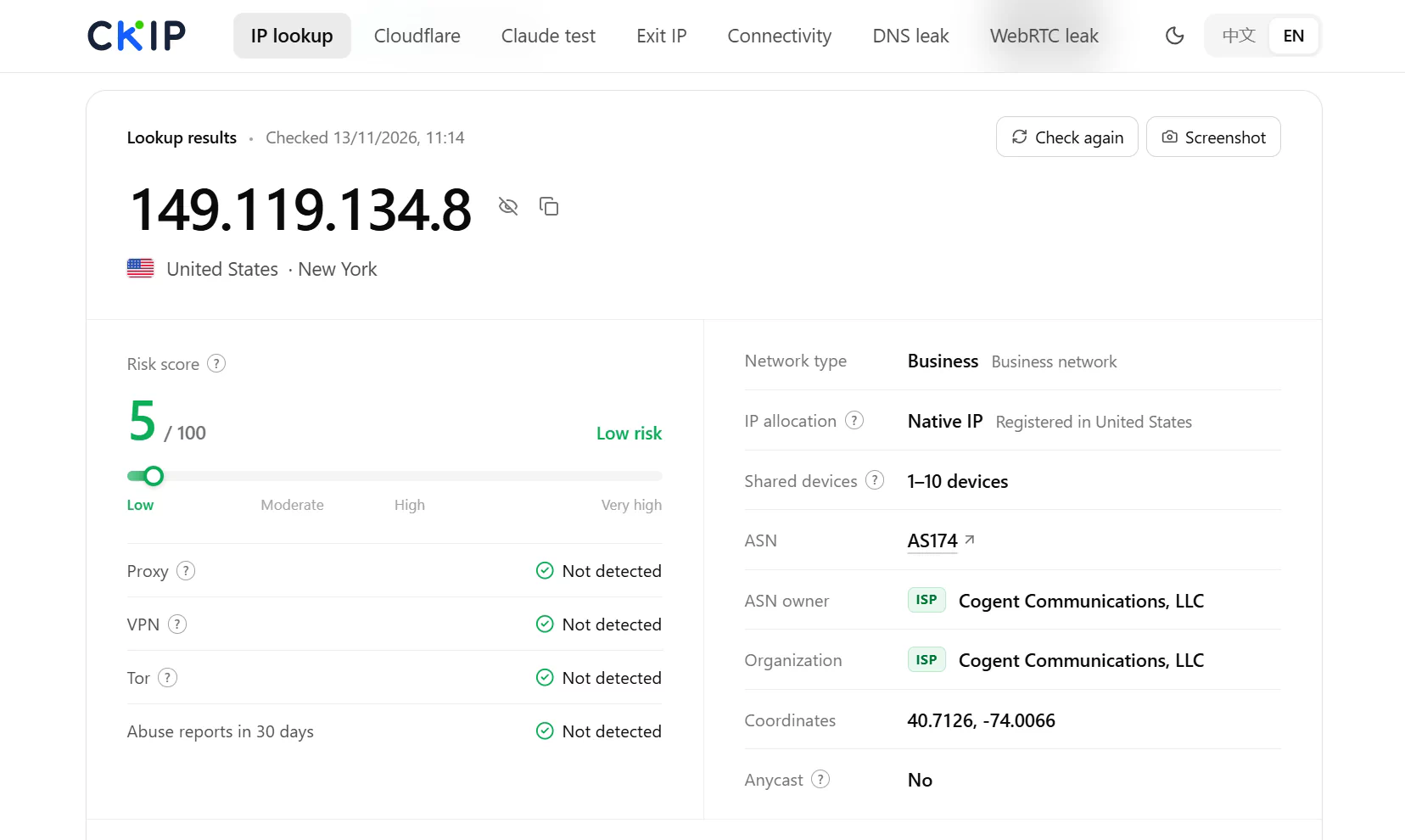
In this test, the FlashIP static proxy received a low risk score of 5/100, with no abuse reports detected in the past 30 days. The results suggest a good IP reputation.
If you want to learn more about how to check proxy IP quality and identify clean IPs, read our guide on How to Check If a Proxy Is Clean.
Protect accounts and respect network rules
An intentional block may reflect an acceptable-use policy, licensing limit, security requirement, age restriction, court order, or local law. Before attempting to bypass it, check the rules that apply to the network, device, service, and location.
For school or workplace access, the safest path is usually one of these:
- Ask for the website to be reviewed or reclassified.
- Request a time-limited exception for a legitimate assignment or task.
- Use an approved remote-access system.
- Ask whether an authorized alternative resource is available.
- Have the administrator test the page and document why access is required.
Avoid installing an unknown app, extension, certificate, or configuration profile just because it claims to unblock websites. Such software may gain access to browsing data, alter network settings, or remain active after you finish using it.
Also be cautious when a previously working website suddenly presents an unfamiliar login page. Return to the official address manually rather than entering credentials into a page reached through a proxy or redirect.
What to Do Next
Once you’ve identified the likely cause, choose the appropriate next step:
Network or location restrictions
Check whether the website is available in your region. If permitted, try a VPN or a location-targeted proxy to test access from another network or location.
VPN or proxy IP blocked
Some websites restrict traffic from recognized VPN or proxy IPs. Check your proxy IP’s reputation and connection details, or try another permitted connection.
Account-related restrictions
If your account has been suspended or restricted, contact the website’s support team. Changing your IP address won’t resolve an account issue.
FAQ
Why can’t I access a website even though my internet is working?
If your internet connection works but a specific website won’t load, the issue may be related to DNS filtering, network restrictions, IP blocking, regional limitations, or the website itself. Check the error message and try accessing the site from another browser, device, or authorized network to narrow down the cause.
Can I use a proxy to test website access from a specific city?
Yes. City-level IP targeting allows you to test how websites respond to connections from specific cities, which is useful for local SEO checks, regional content verification, and location-based testing. FlashIP now supports city-level IP targeting in selected U.S. cities, allowing you to choose IPs based on your business needs, with more locations coming soon.
What causes a website to block certain IP addresses?
Websites may block IP addresses because of suspicious traffic, repeated login attempts, automated requests, spam activity, or a history of abuse associated with the IP. Some websites also use IP reputation and geographic information to determine whether a connection should be allowed.
Why am I getting a CAPTCHA when visiting a website?
A website may display a CAPTCHA when it detects unusual traffic patterns, frequent requests, unfamiliar IP addresses, or activity that resembles automated browsing. Check your browser settings and network connection first. Repeatedly refreshing the page or switching IPs may trigger more verification.
What is the difference between an IP block and a geo-restriction?
An IP block usually prevents access based on an IP address or its reputation. A geo-restriction limits access based on the geographic location associated with the IP. Both can prevent users from opening a website, but they require different troubleshooting approaches.